Introducing Zen Write: A Free, Distraction-free Writing App
After so many iterations, it's finally here! I can finally say that Zen Write has reached version 1! Pretty proud of how far it's come.
Let's go!
Why I Built This?
I've wanted a calm, distraction-free writing app for so long. I've tried several free alternatives but none of them felt quiet right.
That's why I built Zen Write. It started as a simple text area with an iA Writer-inspired focus mode, just as a proof of concept. Over time, it evolved into Zen Write as it is today, with all the features I personally need.
The Zen UI
Zen Write is designed to be a calm, distraction-free writing app. This means the UI should be as simple and clean as possible. When users open the app, the first thing they should see is their writing. Other UI elements should barely be noticeable.
That's why the sidebar toggle, toolbar, and preview button are dimmed and placed at the top screen, and kept small. The only exception is the writing toolbar (bold, italic, etc) which remains more visible on mobile screens.
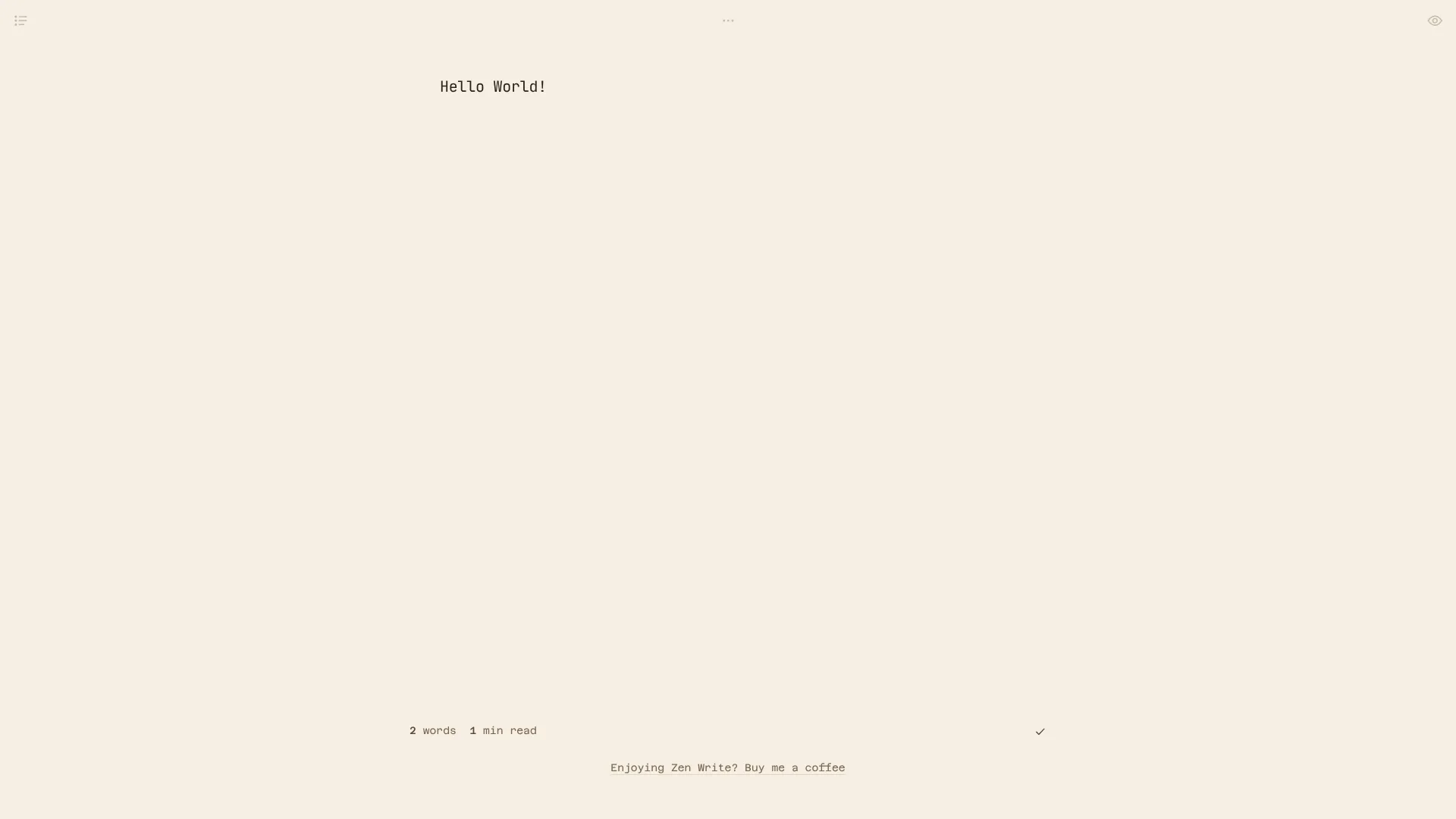
Focus Mode: The Main Feature
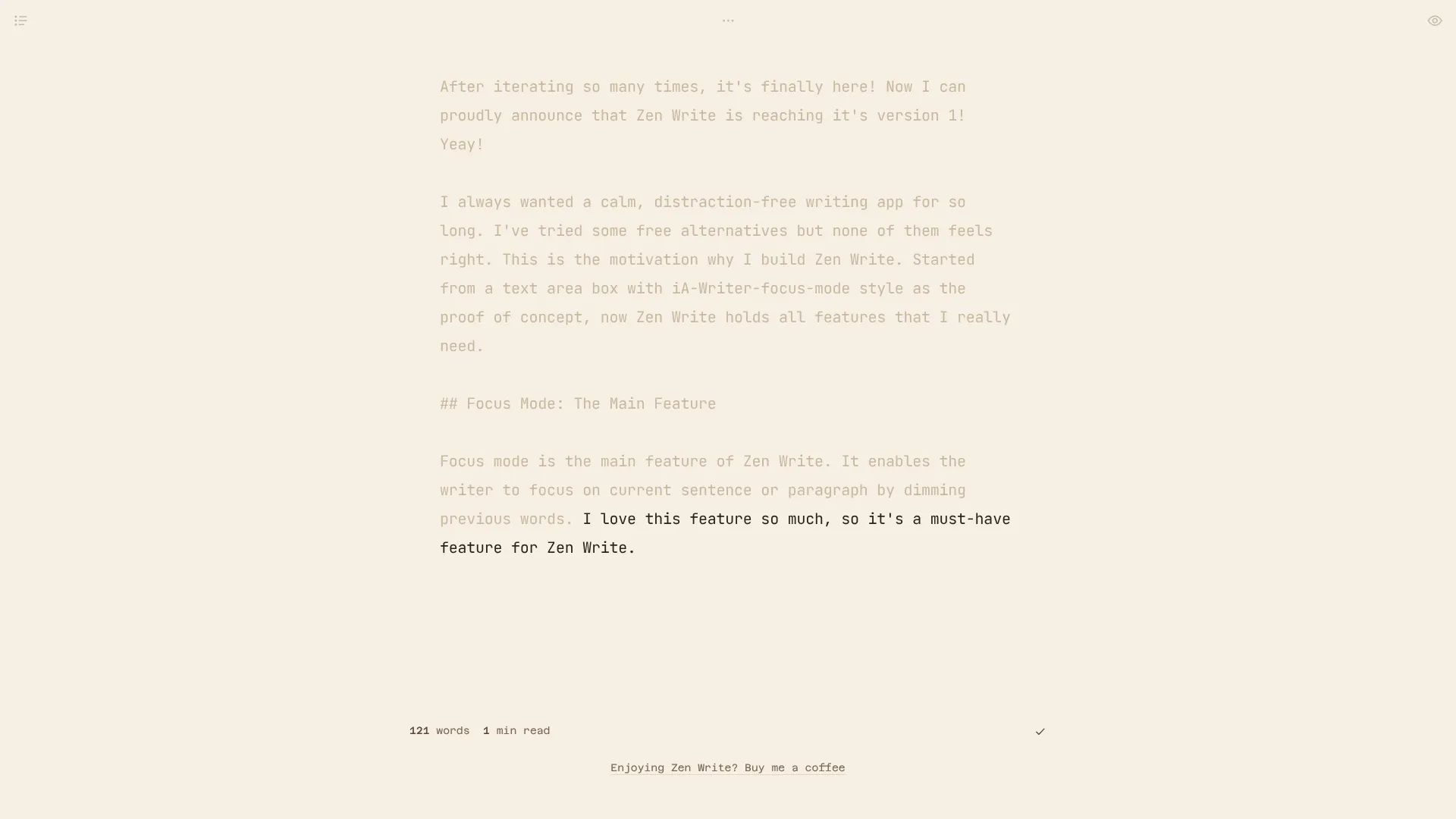
Focus mode is the main feature of Zen Write. It helps writers focus on the current sentence or paragraph by dimming surrounding text. I love this feature, so it was a must-have for Zen Write.
You can switch between sentence-based and paragraph-based focus mode using the top toolbar. Click the three-dot menu at the top center of the screen to toggle between them
Your Notes Stay Local, with Optional Sync
Zen Write uses IndexedDB instead of browser's localStorage to store your notes. This allows it to handle much larger amounts of data without the storage limits of localStorage. Your notes stay in your browser unless you clear the site's browser data.
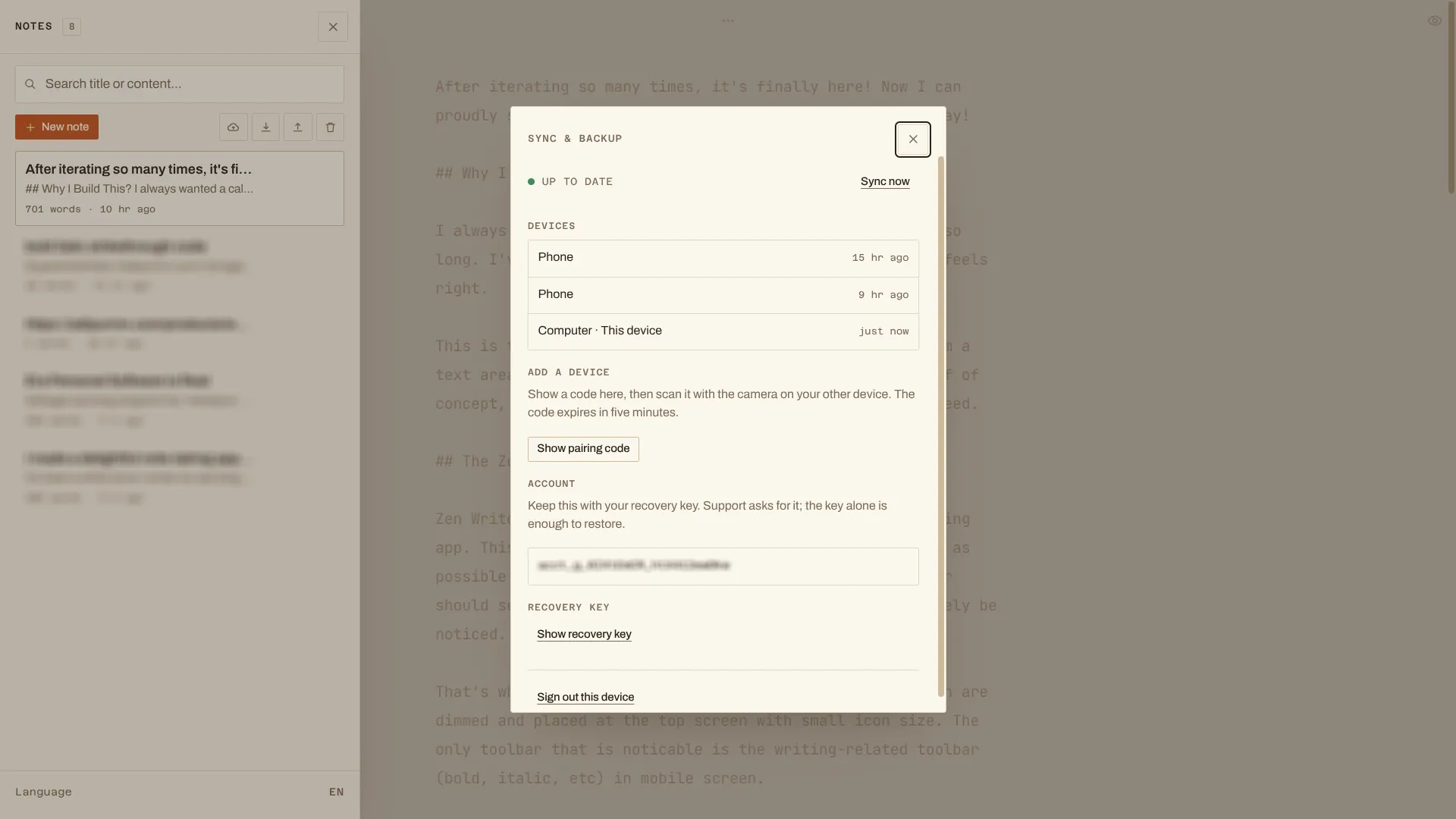
To help prevent accidental data loss and make my notes accessible across devices, I developed a note-sync feature. I often write on my phone too, so being able to access the same notes on moth devices is really useful.
Sync is currently invite-only. I have plans to monetize this feature someday with affordable pricing, but that's not happening anytime soon.
You can request access through the Sync and backup section in the sidebar.
Markdown is a First-class Citizen
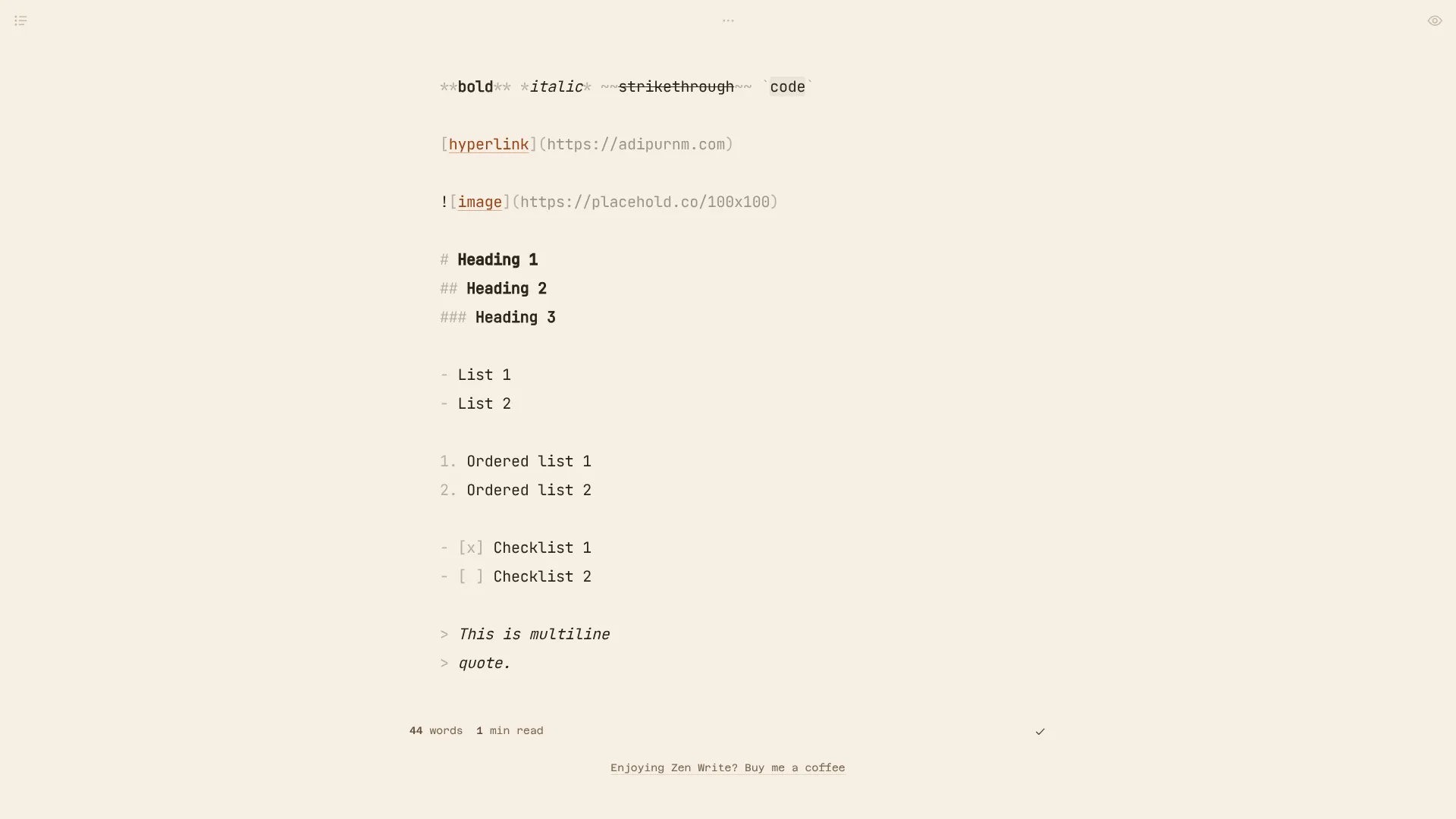
Zen Write renders Markdown syntax as-is while beautifully highlighting it. I don't like how Obsidian automatically formats Markdown syntax, hiding the original markup as you type. I prefer keeping the syntax visible while writing.
It's a matter of personal preference, but I believe seeing the actual Markdown syntax makes the writing process more transparent and predictable.
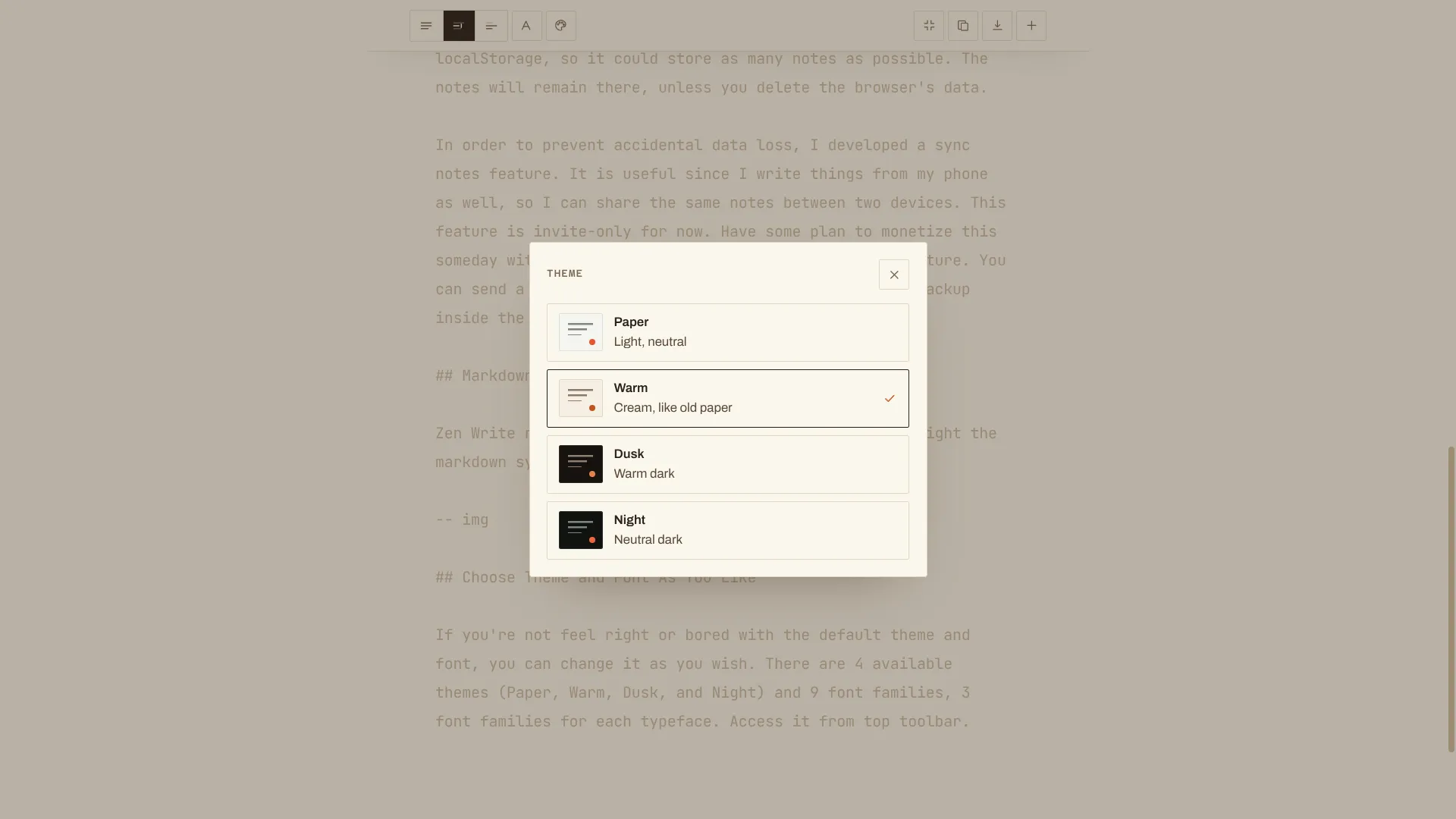
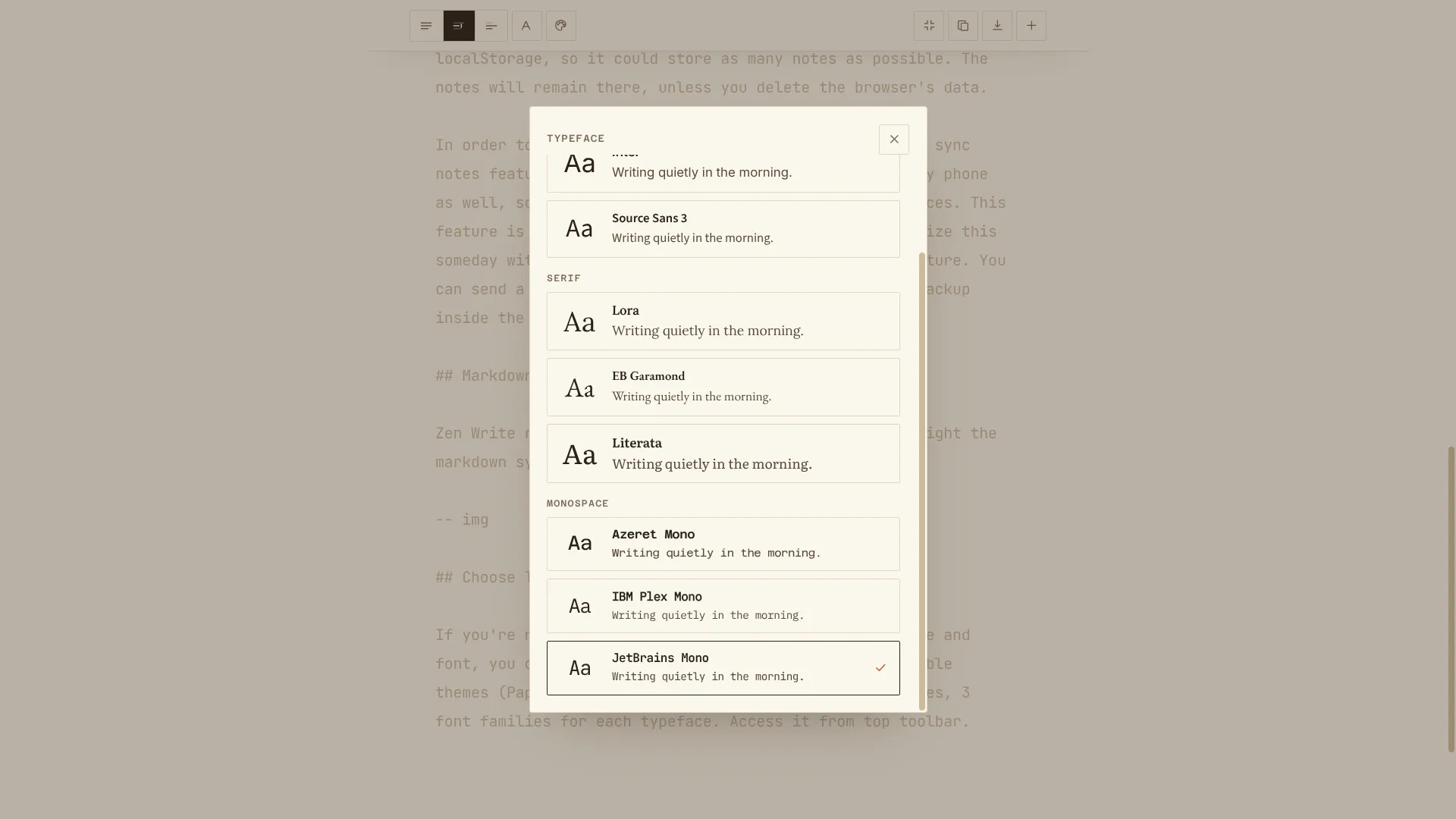
Choose Theme and Font As You Like
If the default theme and font don't feel right, or you simply get bored with them, you can customize them to your liking.
Zen Write offers four themes (Paper, Warm, Dusk, and Night) and nine font families across three categories: serif, sans-serif, and monospace, with three options in each category.
You can access these options from the top toolbar.
Preview Your Writing Before Publishing
Use preview mode to review your entire document and make sure everything looks right, especially the Markdown formatting.
You'll find the preview button in the top-right corner of the screen.
Install it as a PWA, and You're All Set
Zen Write is a responsive web application that supports PWA installation. Installing it is straightforward, and it takes up very little storage space.
On my phone, the installed app taks up around 300 KB. To me, that's a huge win! Just 300 KB, yet you get the same interface and functionality across your devices.
No bulky installation, no complicated setup. Just install it and start writing.
6,578 Lines of Vanilla JavaScript Code
Zen Write is built with Vanilla JavaScript with the help from coding agent. No fancy tech stack here. Honestly, I didn't expect developing Zen Write to be this fun.
I also keep it alongside my other web tools, which are built with Vanilla JavaScript too. So yeah, the clanker did most of the heavy lifting, after all.
I think that's about it!
If you're writing blog posts, e-books, novels, short stories, or anything else, and you're looking for a calm, distraction-free writing app, please give Zen Write a try.
The editor will always be free, forever.
If you have any feedback or suggestions for Zen Write, feel free to email me using the link below this post. I'd love to hear from you!
Pro tip:
Install Zen Write as a PWA on your laptop, then press F11 to enter full-screen mode and enjoy an even more immersive writing experience.
Komentar
Belum ada komentar. Jadi yang pertama.